Last week, I had the opportunity to hang out with our newest Gaucho faculty members during the First Year Residential Experience meeting. We spent an hour talking about the 8 Zones of Accessibility (page structure, lists and bullets, tables, text, colors, links, images, and media). I come prepared to alleviate worries about some of the trickier aspects of accessibility, however, the one that tripped us up that day was unassuming little alt text.
On the surface, alt text is pretty simple. We click on an image to access the image’s image accessibility box, then write a concise description of the instructional or functional image. In the case of decorative images, we mark them as decorative.
But what do we do when the image is complicated? An infographic, a diagram of the muscles in a human appendage, or a diagram showing the anatomy of a cinder cone volcano? It is impossible to capture the essential details of complicated images in text the approximate length of an old school Tweet. For images like these (charts, graphs, maps and timelines, flowcharts, concept maps, images of art or photographs for analysis) we must pair alt text with something called a long description.
A long description offers a detailed explanation of the image. It explains in full what a sighted person would get from studying the image.
Here’s a simple structure for crafting long descriptions:
- Say what it is. Name the type of image and the point it makes in your course.
- Give the big picture first. Describe the layout, axes, or how the parts relate.
- Walk through the details in a meaningful order, the way you’d teach them, not the way they happen to sit on the page.
- Include the words and numbers. Labels, legends, values, and scale bars shouldn’t live only in pixels.
- Finish with the takeaway, unless the image is part of an assessment, in which case describe it neutrally and let students do the interpreting.
I like to ask Claude.ai to give me a first draft when I need a long description. I then revise it using my human brain and specialized content knowledge. (AI can misread complex images, so its output needs a subject-matter check.)
Where does this long description go, you ask?
I like to link to a separate page right under the image with a descriptive link text.
Let’s check out an example of the whole image accessibility package:

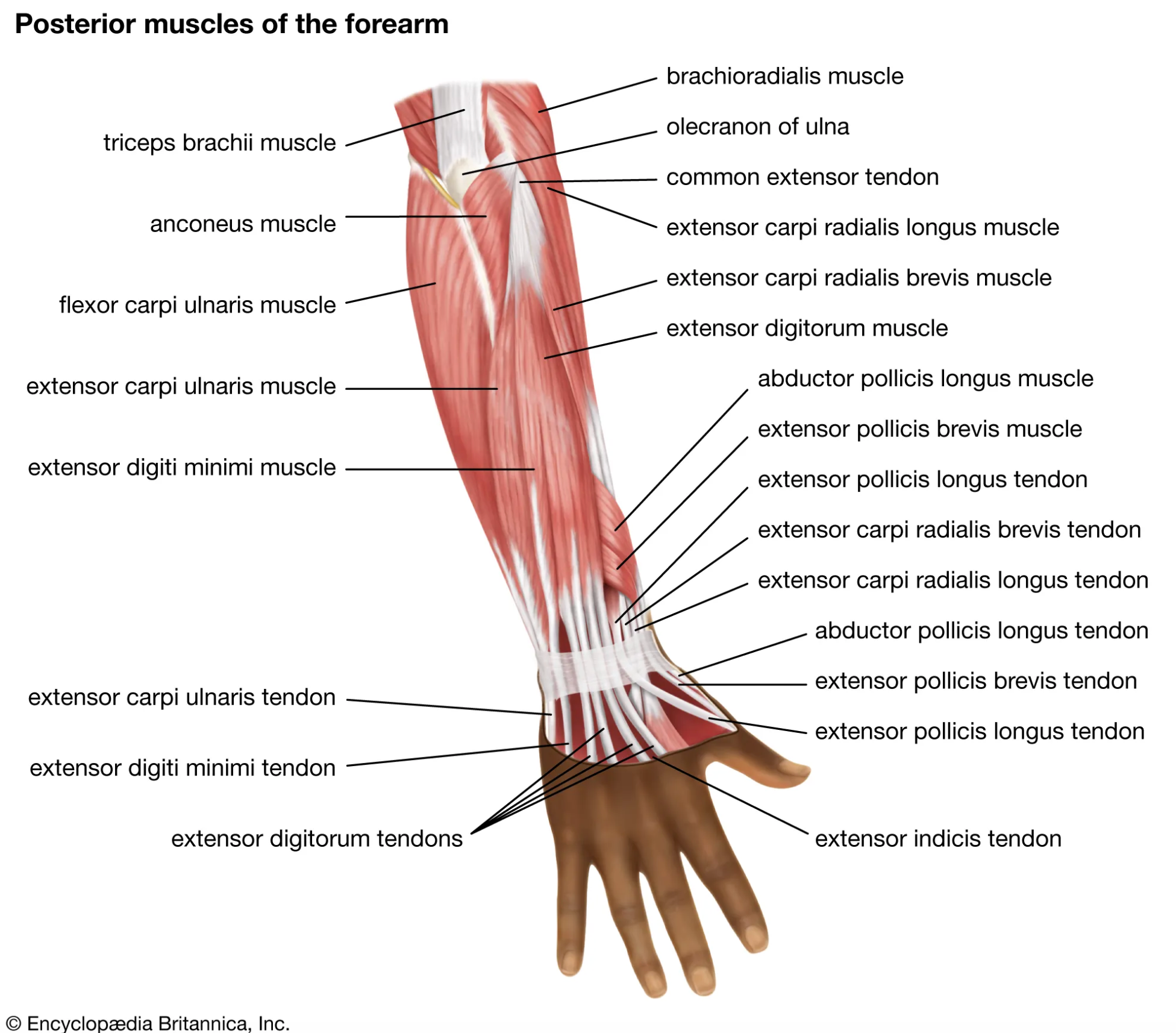
Fig 1. Posterior muscles of the forearm. See long description for detailed explanation of diagram.
Alt text (added to the image accessibility box accessed by clicking on the image): Back of the forearm with skin removed, showing labeled extensor muscles and tendons running from the elbow to the back of the hand.
Note that I’ve given the image a caption that links to the long description. I’ve given the image meaningful alt. text, and I would also provide context for the image in the surrounding paragraphs.
A few tips:
- No need to repeat the alt text inside the long description. Start from where it leaves off.
- Rather than rather than one huge block of text, use headings or short paragraphs to help the screen reader users can navigate.
- Define terms briefly if your audience would benefit from them. For example, “proximal means closer to the shoulder.”
- Check against the source. Have someone with knowledge verify the content and the usability of the long text, especially if the image will be used for teaching.
Try it this week
We don’t need to fix everything at once. Pick one image in a course you’re teaching or revising for accessibility. Write a long description for it, then read it aloud to a colleague who can’t see the image. Ask them to explain it back. If they get the idea, you’ve done it!
In closing
This week’s focus in the CTLE is Image Accessibility, and we have some great workshops planned! Join Jessica Parsons for “Alternative Text: The Game,” or join me for “Alt Text Basics”! You can secure your spot on the CTLE event registration page.
We hope to see you there!


