
We’re excited to announce that GCC has enabled Discussion Board Checkpoints in Canvas! This new feature gives you more flexibility and clarity when building graded discussions, to keep students on track and help you grade discussions more easily.
What Are Discussion Board Checkpoints?
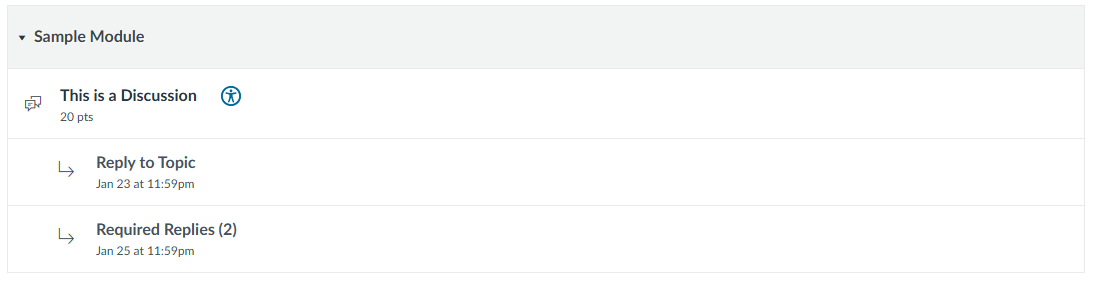
Discussion Board Checkpoints allow you to break a single graded discussion into milestones or tasks:
- Initial post
- Unique due date
- Available points for this task
- Required number of replies
- Unique due date
- Available points for this task
This replaces the traditional “one due date and one point total” discussion that can often create confusion for students. This new feature mirrors how many of us already want students to participate. Most of our discussions already ask students to make an initial post by one date, and reply to X number of peers by another date. With Discussion Checkpoints, students will see both an initial post and a reply task item on their to-do list with two separate items on their canvas calendar. This removes ambiguity and helps keep our students organized.
Like the traditional “one due date” model? That’s okay! This is an optional feature that needs to be toggled on in each discussion board to be used. If you’re not ready to experiment or don’t think the feature suits your class, there’s no need to make any adjustments. If you’d like to give it a try, simply enable the feature in your discussions.
Note: Speedgrader looks different for Discussions With Checkpoints!
- Student’s posting (notice the posting displays in the context of the discussion)
- Navigation through individual student posts/replies
- Grade for initial response
- Grade for replies
- Status (none, late, missing, excused, extended)

With these new options for checkpoint discussions, you can grade all initial posts and then return to grade replies later. This is helpful for leaving students early feedback to help inform their continued discussion. Note: When a discussion’s initial post is graded, but not replies, Canvas may (depending on your grading scheme/settings) assign partial points until all grading is complete (so a student may see 5/10 on their discussion until they complete the required replies, and those replies are graded and the additional points are awarded). This can potentially cause some grade-related anxiety and confusion. If this is your preferred workflow, consider informing students in your syllabus or class announcements to avoid confusion.
However, if you prefer to grade the initial post and replies altogether, you have this option. This is the recommended approach by the CTLE.
Quick Links To Get Started
Discussion Checkpoints – A Quick Overview Video (The Canvas Insider)
Checkpoints FAQ (Canvas)
How to Assign Discussion Checkpoints (Canvas Tutorial)
Limitations & Things to Keep in Mind
While this feature has been around for a while, we’ve noticed it has some “quirks” and things you might want to keep in mind before setting it up in your course.
- You can only enable checkpoints on graded discussions
- Rubric scores do not auto-populate
- If you attach a rubric, Canvas won’t automatically fill in the scored fields for each checkpoint. You’ll need to enter scores manually.
- May not appear in the Canvas Mobile App
- Some students report that the checkpoints are displayed differently (or not at all!) in the Mobile App. If a student reports they don’t see checkpoints, they’ll still receive credit/completion for participation and posting.
- Speedgrader looks different for discussions with checkpoints
Discussion Board Checkpoints are a powerful new tool for structuring participation, enhancing interaction, and clarifying expectations for students.
Upcoming Workshop for this Feature:
Thursday, January 22nd @ 3:30 pm Register Here!
If you have questions, don’t forget about the CTLE Virtual Open Office Hours (M-F 8 am – 3 pm)


